Introduction
Multi-photo printing lets you print multiple photos on a single page. This is often done to save resources, create collages, or design customized photo gifts, ensuring creativity while being cost-effective.
- Understanding Multi-Photo Printing
1.1 What is Multi-Photo Printing?
Multi-photo printing is a technique that saves paper, ink, and time by combining several images onto one page. This is used for photo albums, greeting cards, and promotional items in homes, schools, offices, and even businesses, all of which make use of this handy feature.
1.2 Benefits of Printing Multiple Pictures on One Page
This technique is helpful and economical because it saves paper and ink. It is great for personal uses like scrapbooks, photo albums, or even for marketing materials. This method is more fun and creative for projects than traditional ways.
- Choosing the Right Software for Multi-Photo Printing
2.1 Built-in Printing Tools
Both operating systems allow users to print multiple photos at once through built-in features. Users on Windows have the option of the Print Pictures feature, while Mac users can use the Preview or Photos app to print while being able to arrange the images.
2.2 Third-Party Software Options
Photo editing tools such as Adobe Photoshop and Lightroom allow for easy alterations. Users can insert and move photos in Microsoft Word and PowerPoint. Online collage generators for printing such as Canva and Fotor also ease the work for users.
2.3 Mobile Apps for Multi-Photo Printing
Features like Google Photos, Layout by Instagram, and Print Studio make it easy for users to collage photos and print them directly from their smartphones, solving the problem of multi-photo layouts while on the go.
- Preparing Your Images for Printing
3.1 Selecting the Right Image Format
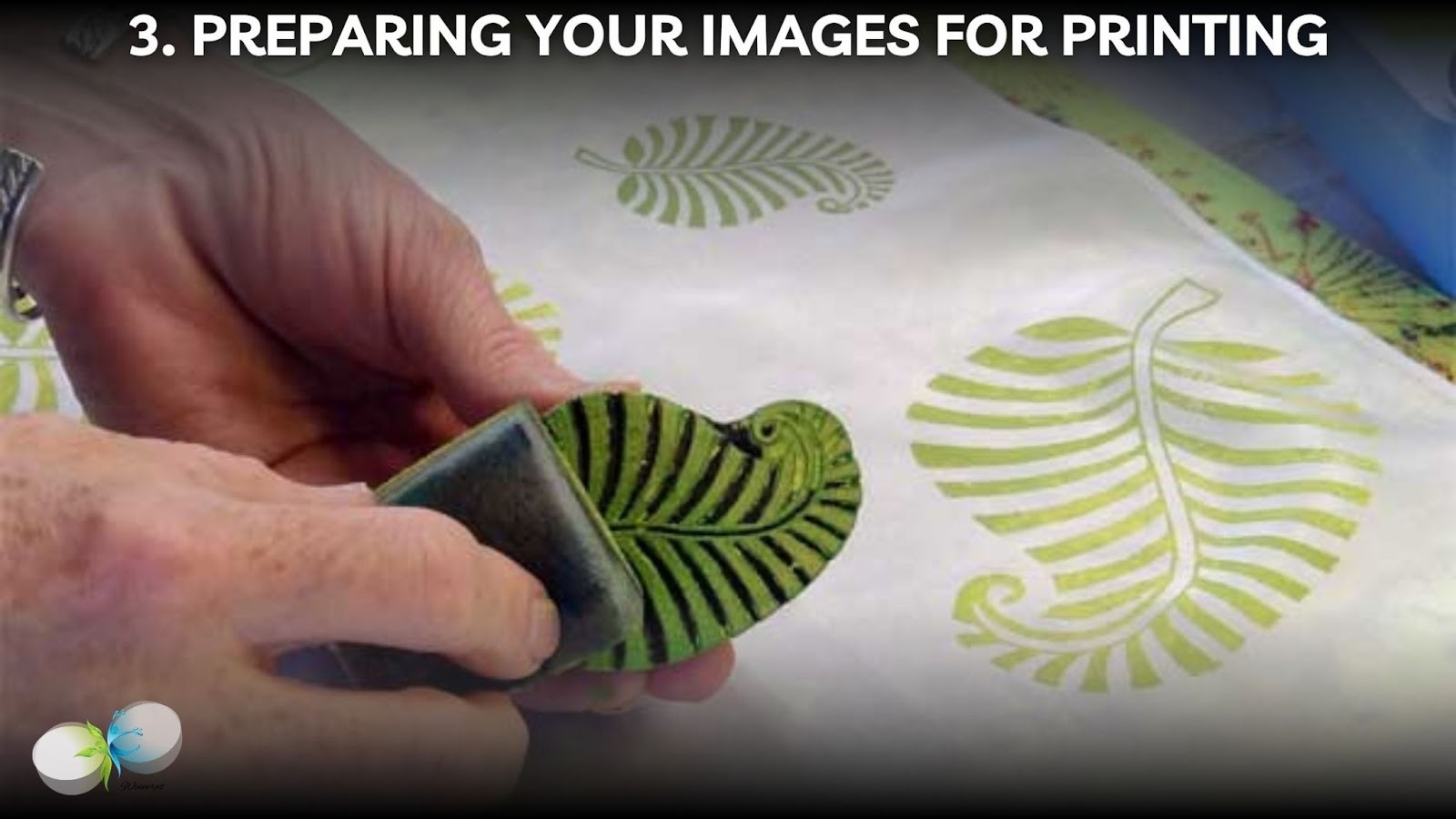
Pick a format such as JPEG for pictures, or PNG for pictures with transparency. Make sure there is no pixelation and the resolution is high enough. Adjusting the size of the images can keep up the quality but also fit on one page.
3.2 Editing and Enhancing Your Photos
Pictures can be edited by changing the brightness, contrast, and sharpness to improve the overall appearance. Cropping and rotating can help in achieving fitting composition/image orientations with the layout.
3.3 Arranging Images for Best Layout
Select a grid layout for organized and neater prints or pick a collage layout for a creative flare. Adjust the margins and spacing to avoid overlapping images and ensure every picture captures attention.
- Printing Multiple Photos Using Different Methods
4.1 Printing from Windows PC
Windows Print Pictures feature makes bulk picture selection and printing very easy. Pick the right paper size, orientation, and quality for printing to ensure optimal for your layout.
4.2 Printing from Mac
In Mac, you can arrange more than one image in the Mac Preview app. Quality of the print can be improved by selecting ‘best quality’, and then adjusting the size and margins before ‘print’.
4.3 Using Microsoft Word or PowerPoint
Add photos to a Word document or PowerPoint slide and organize them. You can change the size, crop, and align the photos. When exporting documents as PDFs, the layout is well-preserved for easy and effective printing.
4.4 Printing with Adobe Photoshop or Lightroom
These programs give you the ability to routinely edit and customize how you want to print different images. You can change the position and size details of each photo to fit your needs, optimizing the ultimate print quality and output.
4.5 Online Tools for Multi-Photo Printing
Programs like Canva or Fotor allow you to upload images, and then arrange them into certain pre-defined templates for you to print them in the form of a collage afterward, making it much simpler to design photo collages.
- Choosing the Right Printer and Paper for Multi-Photo Printing
5.1 Types of Printers Suitable for Photo Printing
When it comes to photo printing, inkjet printers are second to none because of their color accuracy and overall quality. Multi-photo layouts are best suited for inkjet printers since they are slower than laser printers but have better detail in their prints.
5.2 Selecting the Best Paper for Your Prints
The glossy paper looks vibrant and shiny while giving photos a much more alluring touch, whereas matte paper gives a softer non-reflective view. Choose the thickness of the paper based on the type of printer you’re using, alongside the desired print quality.
5.3 Adjusting Printer Settings for High-Quality Prints
Make sure to switch the DPI (dots per inch) on the printer to a higher value to improve quality. Also, adjust the color management settings to wait for the print colors to accurately display the image on the screen.
- Troubleshooting Common Printing Issues
6.1 Blurry or Pixelated Images
When images are out of focus or pixelated, it is often due to a low resolution. To prevent this from happening, it’s important to maintain a high level of quality in images during printing (300 DPI). Furthermore, ensure that there is strict proper resizing of images to prevent stretching.
6.2 Printer Alignment and Layout Errors
There may be an alignment disorientation due to incorrect printer adjustments or improper image arrangement. Before you proceed, check your margins and print preview. For better results, ensure that there is a proper alignment of your printer head.
6.3 Ink Smudging or Fading Issues
If the prints are not incompatible or dried properly, then it will lead to ink smudging. Use good-quality photo paper while ensuring that the prints dry first. Always remember to set the printer to photo print mode.
- Creative Ideas for Multi-Photo Printing

Collages can be described as an artistic or organized arrangement of different images. These collages make the best scrapbook pages because they creatively define a single event or idea in a single printout.
7.2 Creating Custom Greeting Cards and Invitations
To customize your greeting cards or invitations, just print several different images. You can brainstorm on how to arrange the photo for the occasion whether it is a memorable birthday celebration, a wedding, or any holiday.
7.3 Making Posters and Photo Storyboards
A combination of different pictures can form a story or a theme within a single poster. This layout is suitable for any event, photo storyboard, or project that needs multiple photos printed in one frame.
- Conclusion
In conclusion, multi-photo prints are an innovative and resource-sustainable option. Using the standard tools available or other mobile applications provides a reliable method for professional printing of multi-photo prints.
FAQs
What is the best software to print multiple pictures on one page?
Prints of higher quality and ideal layouts are achievable with Adobe Photoshop or Lightroom. A collage is easily and quickly achievable with the help of Microsoft Word, PowerPoint, and online tools like Canva and Fotor.
How do I ensure my images don’t lose quality when printed?
Your pictures need to be in high resolution (300 DPI). Try not to resize them as it can lead to pixelation. Instead, Save images as JPEG or PNG for better quality. Use quality paper and settings while printing for a better outcome.
Can I print multiple pictures on one page using a phone?
Applications such as Google Photos, Instagram’s Layout, and Print Studio allow the user to create and print a collage directly from their phone. Users can conveniently print the collages via the connected printer or cloud service.
What’s the easiest way to print multiple photos on a Mac?
Mac users can edit the images and their arrangements with Preview before printing. This application is simple to use because it enables margin modification and has accentuated borders, making it beginner and advanced user friendly.
How do I print multiple pictures on one page using Adobe Photoshop?
In Photoshop, pictures can be dragged and dropped directly into a new document. The images can be resized after being positioned in a grid. You can also alter printing options in the Print dialog after changing the images’ positions.