Many Epson EcoTank users believe that installing replacement ink cartridges is the hardest part of printer maintenance.
In reality, resetting the waste ink counter often causes more frustration—especially on Windows systems.
In this article, we share a real customer support case involving an Epson ET-2850 waste ink pad reset, including the exact problems the customer faced and how we helped them solve it step by step.
Initial Problem Encountered by the Customer: Reset Tool Unable to Unzip on Windows
The customer purchased an inkjet reset tool from Winnerjet.
The inkjet installation process went smoothly, but the reset process failed.
Customer Report:
1. Unable to unzip the downloaded reset file.
2. Unresponsive during decompression on Windows computer.
3. Chrome browser allows download, but there is no response.

Why This Happens: Common Windows Reset Tool Issues
In our experience, Windows-related issues are the most common reason reset tools fail to run properly. This is usually due to Windows security restrictions silently blocking files, unsupported or incorrectly extracted compression formats, missing or outdated printer drivers, antivirus software interfering with the reset program, or users running the tool without administrator permissions. These factors often make the process frustrating for end users, which is why proper technical guidance is far more important than simply selling a reset tool.
Step 1: Identifying the File and Printer Model
To solve the issue efficiently, we first confirmed:
1.The printer model: Epson ET-2850
2.The reset file format
3.The customer’s operating system: Windows 11
Once the model was confirmed, we ruled out incompatible reset software.
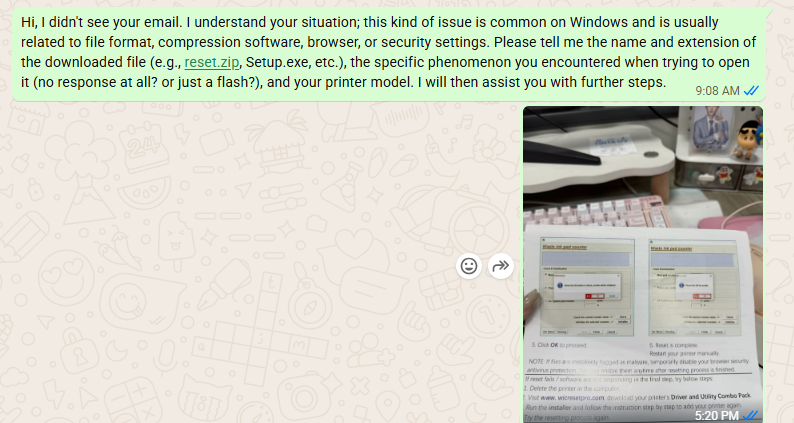
We asked the customer to confirm the printer model and reset file type to avoid compatibility issues.
Step 2: Fix Driver Issues (Critical Step)
During the troubleshooting process, the customer discovered another problem: The printer driver could not be installed, and Windows could not recognize the device.
Without the correct driver, any waste ink reset procedure will fail, typically displaying a “communication error.”
We guided the customer to install the official Epson ET-2850 Windows driver.
Step 3: Reset Program Stalling During Installation
During the driver installation process, the customer encountered a situation where the setup appeared to stall and become unresponsive. At first glance, it looked like the installation had completely frozen, which can easily cause frustration and lead users to force-close the program. However, this behavior is actually quite common on Windows systems. In many cases, Windows is performing background tasks such as security verification, driver compatibility checks, or system permission validation, especially when installing printer drivers.
We advised the customer not to interrupt the process immediately, but to wait patiently and observe the system behavior. After a short period, the installation resumed on its own and completed successfully. This step is critical, as interrupting the driver installation prematurely can result in incomplete drivers, communication errors, or reset tool failures later on. With the correct guidance, what initially looked like a serious problem turned out to be a normal Windows behavior.
Step 4: Communication Error During Waste Ink Reset
Even after installing the driver and with the USB cable connected, the reset program still displays a communication error. This is one of the most common reasons for waste ink reset failure.
We guided the customer to perform the following steps:
1. Use only the USB connection (disable Wi-Fi), as Wi-Fi can interfere with the reset tool.
2. Restart the printer and computer to clear any background conflicts.
3. Try a different USB port to rule out port-related issues.
Finally, we guided the customer to run the reset program as administrator and close all other printer-related software to avoid communication conflicts. After following these steps, the reset was completed successfully, and the printer returned to normal operation.
Final Result: Successful Waste Ink Counter Reset 🎉
After following the steps above, the customer reported back with great news:
“It worked, thank you so much!!!”
The waste ink counter was successfully reset, and the printer returned to normal operation.

Our Commitment: More Than Just a Product
This case clearly reflects our philosophy.
We don’t just sell waste ink reset tools — we help customers succeed.
Whether you are a home user fixing one printer or a reseller supporting dozens of clients, our goal is to provide reliable and compatible reset solutions, easy-to-follow instructions, and real human technical support when problems arise. Waste ink errors can be stressful, but with the right guidance, they are completely solvable.
If you’re facing a waste ink counter error or need help choosing the correct resetter for your Epson printer model, feel free to contact us — we’re always here to help.