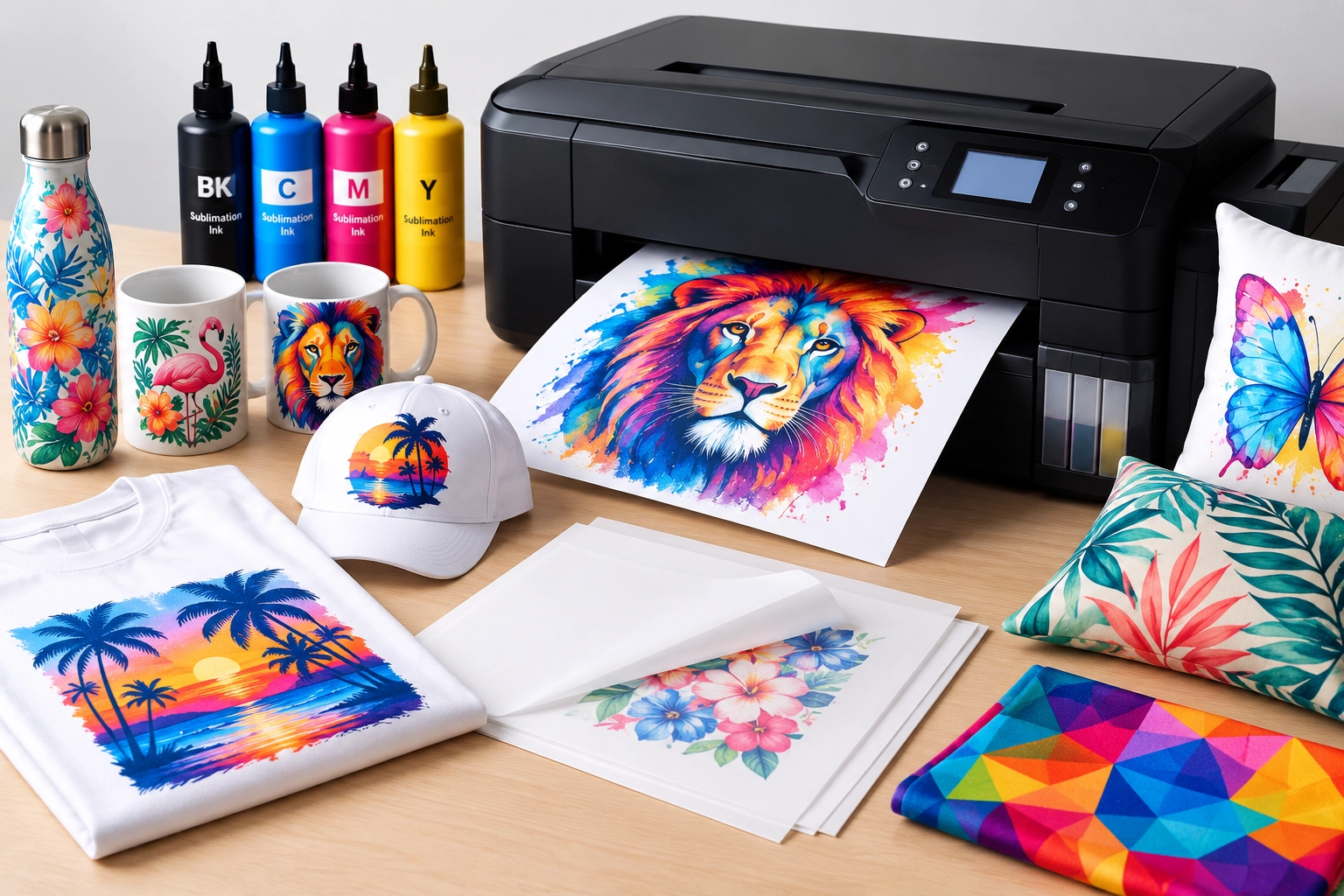
Sublimation printing is popular for creating custom t-shirts, mugs, phone cases, and more. If you’re looking to start sublimation printing on a budget, converting a regular Epson printer is one of the easiest and most affordable ways to begin.
Why Choose an Epson Printer for Sublimation?
Epson printers are the industry standard for DIY and small-business sublimation conversions, and the primary reason comes down to printhead technology.
Unlike HP and Canon models that use heat-activated thermal printheads—which trigger sublimation ink prematurely and ruin nozzles—Epson uses proprietary Micro Piezo® and PrecisionCore® cold printhead technology. By using electrical charges instead of heat to eject ink, Epson keeps the sublimation ink perfectly stable until it reaches your heat press.
Looking for an in-depth breakdown of which printer fits your specific production needs? Check out our detailed guide on what is the best Epson printer for sublimation to compare features, print resolutions, and budget tiers.
Before buying, it is crucial to evaluate printers across three practical factors: Max Print / Paper Size, Ink Tank Type & Mechanism, Budget Range
| Model | Max Print / Paper Size | Ink Tank Type & Mechanism | Estimated Price Range | Best For / Use Case |
|---|---|---|---|---|
| Epson EcoTank ET-2400 | Up to 8.5" × 14" (Legal) | 4-Color Integrated Tank (Keyed Auto-Fill) | $180 – $240 | Absolute beginners, mugs, tumblers, small crafts on a tight budget |
| Epson EcoTank ET-2800 | Up to 8.5" × 14" (Legal) | 4-Color Integrated Tank (Keyed Auto-Fill + LCD Screen) | $200 – $280 | Entry-level apparel, drinkware, and general home crafting |
| Epson EcoTank ET-8550 | Up to 13" × 19" (Super B / A3+) | 6-Color Tank (Includes Photo Black & Gray) | $650 – $800 | High-end photo apparel, fine-art sublimation, complex gradients |
| Epson EcoTank ET-15000 | Up to 13" × 19" (Rear Feed) | 4-Color Tank (PrecisionCore High-Speed) | $600 – $750 | Small business production, large-format all-over T-shirts, tote bags |
Converted To Sublimation: What You’ll Need
Before you start converting, you’ll need:
- A brand-new Epson inkjet printer (not previously used with regular ink)
- Sublimation ink
- Refillable cartridges or a continuous ink supply system (CISS)
- Sublimation paper
- A heat press (for transferring the design)
Step-by-Step: How to Convert Your Epson Printer
1. Choose the Right Epson Printer
Look for Epson EcoTank or Expression series printers. Popular models include:
- Epson EcoTank ET-2800, ET-2850, ET-15000
- Epson Workforce series (like WF-7720 or WF-7210)
Avoid used printers or those with ink already installed, as mixing ink types can cause clogging or damage.
2. Install Sublimation Ink(Case Study: Epson EcoTank ET-2800)
If using an EcoTank printer:
- Fill the tanks directly with sublimation ink using squeeze bottles or syringes.
If using cartridges:
- Inject sublimation ink into the refillable cartridges.
- Insert them into the printer carefully.
Make sure no original dye or pigment ink is present — sublimation ink must be the only ink used from the start.
For EcoTank Printers (ET-2800):
- Remove all blue protective tape before plugging the machine in.
- Open the tank tabs and push your sublimation ink bottles straight onto each keyed nozzle until full (it stops automatically).
- Plug in the printer, turn it on, and hold the [?] button for 5 seconds to initiate ink charging (takes ~11 minutes).
For Cartridge Printers: Inject sublimation ink into empty refillable cartridges (ARC) using syringes, remove the vent plugs, and seat them firmly into the carriage.
Check out this quick video on HOW TO CONVERT AN EPSON ET-2800 FOR SUBLIMATION PRINTING:
3. Run a Test Print
After installation:
- Run a nozzle check and print a test page.
- If colors look strange, do a head cleaning or align the printhead through the printer’s software.
4. Adjust Printer Settings
Set your print quality to High and choose the right media type (like “Photo Paper” or “Premium Presentation Paper”) to get the best color results.
5. Start Printing!
Use sublimation paper to print your designs, and transfer them to products with a heat press.
Tips for Best Results
- Use high-quality sublimation ink (like Winnerjet’s reliable, vibrant ink solutions).
- Only print on polyester fabrics or coated items.
- Keep the printer active — use it at least weekly to prevent clogs.
Can I Convert Back to Regular Ink Later?
It is strongly not recommended.
Once sublimation ink enters the internal ink lines, dampers, and printhead nozzles, flushing it out completely requires extensive chemical purging cycles. Any leftover sublimation residue will contaminate standard dye/pigment ink, causing muddy prints, severe discoloration, and permanent nozzle clogging. To avoid endless maintenance headaches, always dedicate the printer strictly to sublimation from day one.
If you need a dedicated document or photo printer for regular printing, standard refills are simple to handle—check out our quick demonstration below:
See how the ET-2800 ink tank mechanism works in real time in our video on How to Refill Epson EcoTank ET 2800 Ink + Print Quality Test!.
Get Your Conversion Right from Day One
Converting an Epson printer is budget-friendly, but your results depend entirely on ink quality. Poor ink leads to clogged printheads and dull transfers.
Winnerjet sublimation ink—trusted by both crafters and print shops.
EcoTank Auto-Stop Bottles: Direct, mess-free filling for ET-2800, ET-8550, ET-15000, and more—no syringes required.
Anti-Clog Formula: Keeps Micro Piezo printheads clean and reliable.
Vivid Transfers: High black density and true-to-life colors that pop after pressing.
Direct Manufacturer Supply: High-purity formulations backed by nearly 20 years of ink expertise.
Get Winnerjet Sublimation Ink for vibrant, clog-free printing.
Looking for bulk or wholesale orders? Contact Winnerjet team for sample testing and pricing.
FAQs About Convert Epson Printer To Sublimation
Can any Epson printer be converted to sublimation?
No. Only Epson inkjet printers with Micro Piezo® or PrecisionCore® cold printheads can be converted. EcoTank models (such as the ET-2800, ET-8550, and ET-15000) are ideal because they use built-in, refillable ink tanks. Avoid thermal inkjet printers (like standard HP or Canon models), as their heated nozzles will ruin sublimation ink.
Can I convert an Epson printer that has already been used with regular ink?
It is technically possible, but strongly not recommended. Flushing factory dye or pigment ink completely out of the lines and dampers requires extensive cleaning cycles and flush kits. Any leftover residue will contaminate your sublimation ink, resulting in muddy prints and persistent nozzle clogs. Always start with a brand-new printer.
Why do my sublimation prints look dull and faded on paper?
This is completely normal. Sublimation ink remains muted on transfer paper until exposed to high heat (typically 385°F–400°F) under a heat press. Once pressed onto polyester fabric or polymer-coated blanks, the dyes turn into gas and bond with the substrate, revealing their full, vibrant color.
What is the best budget Epson printer for sublimation?
The Epson EcoTank ET-2800 is the most popular entry-level choice. It retails at an accessible price point, handles standard 8.5″ × 11″ and legal-size paper, and features simple auto-stop refill tanks. For larger apparel designs up to 13″ × 19″, the ET-15000 or ET-8550 are the standard wide-format choices.
What happens if I print on regular copy paper instead of sublimation paper?
Standard copy paper absorbs sublimation ink deep into its cellulose fibers instead of releasing it. When heat-pressed, only a fraction of the ink transfers, resulting in washed-out colors and uneven coverage. Dedicated sublimation paper features a special release coating that ensures maximum ink transfer onto your blank.