Have you ever printed the wrong document by mistake? Or maybe your printer keeps printing the same page over and over again? Don’t worry—stopping a print job is easy once you know how. This guide will show you simple ways to cancel a print job on Windows, Mac, or directly from your printer.

Why You Might Want to Cancel a Print Job
There are many reasons to stop a print job:
- You sent the wrong file to the printer.
- The printer is printing too many pages.
- The settings were wrong, like black-and-white instead of color.
- Your printer is stuck or acting up.
How to Cancel a Print Job on Windows
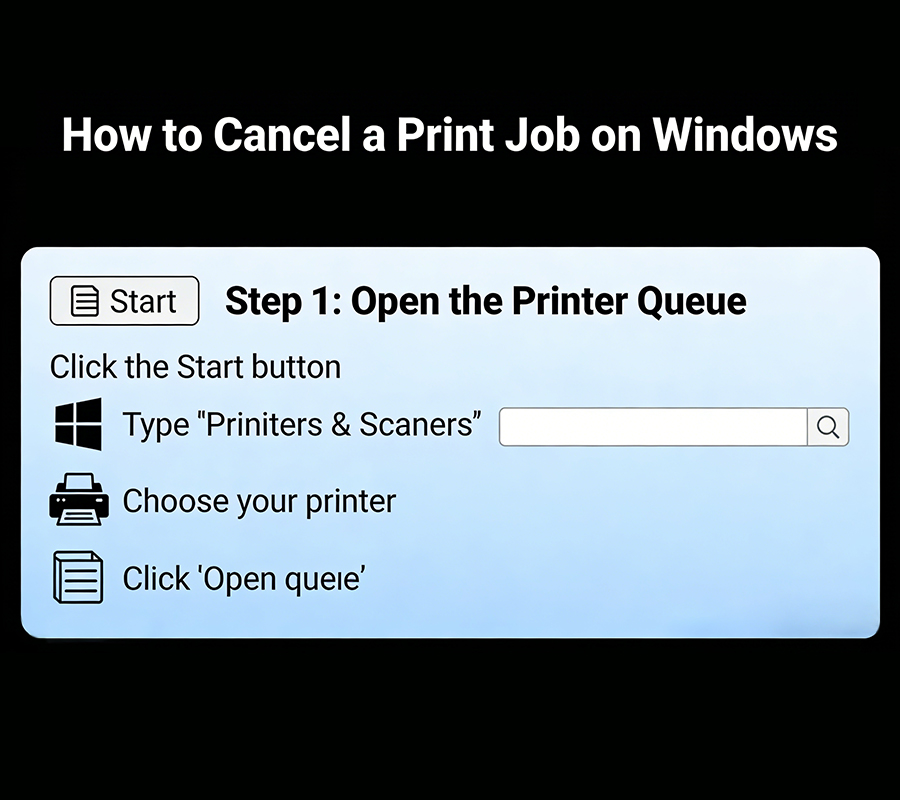
1. Open the Printer Queue
- Click the Start button and type “Printers & Scanners.”
- Choose your printer and click “Open queue.”
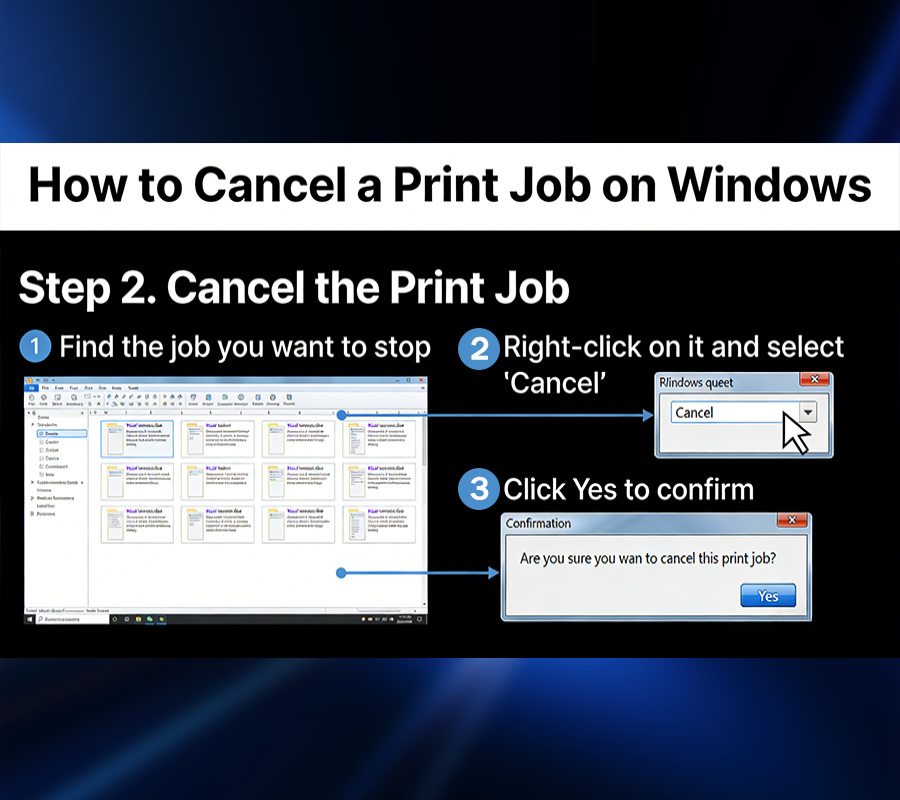
2. Cancel the Print Job
- Find the job you want to stop.
- Right-click on it and select “Cancel.”
- Click Yes to confirm.
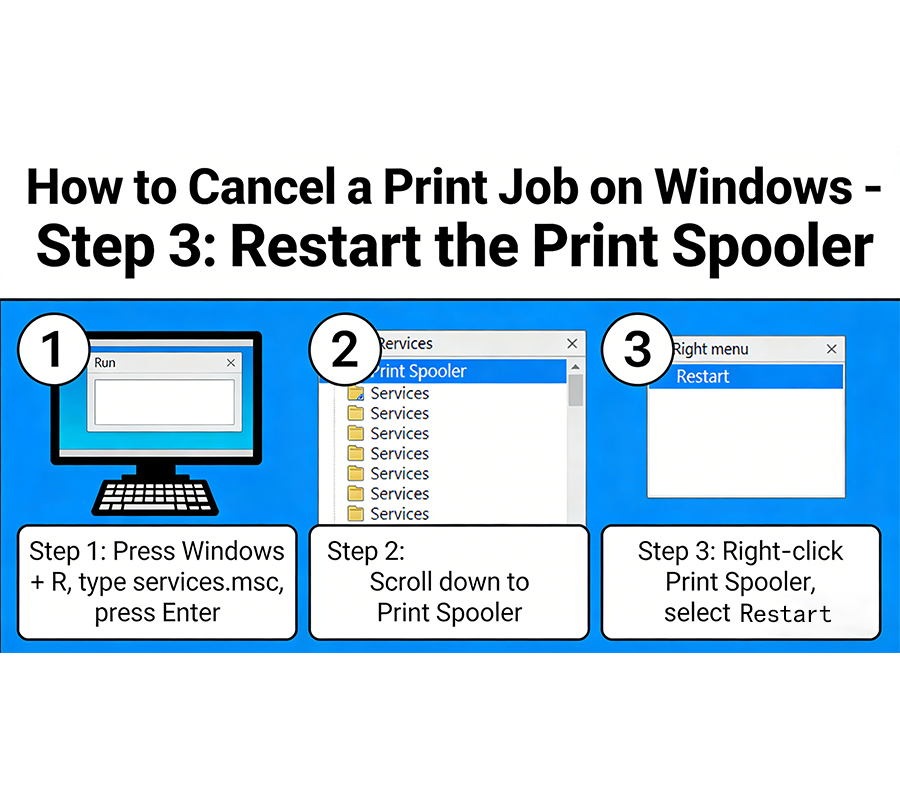
3. If That Doesn’t Work: Restart the Print Spooler
- Press Windows + R, type services.msc, and press Enter.
- Please scroll down to Print Spooler, right-click it, and select Restart.
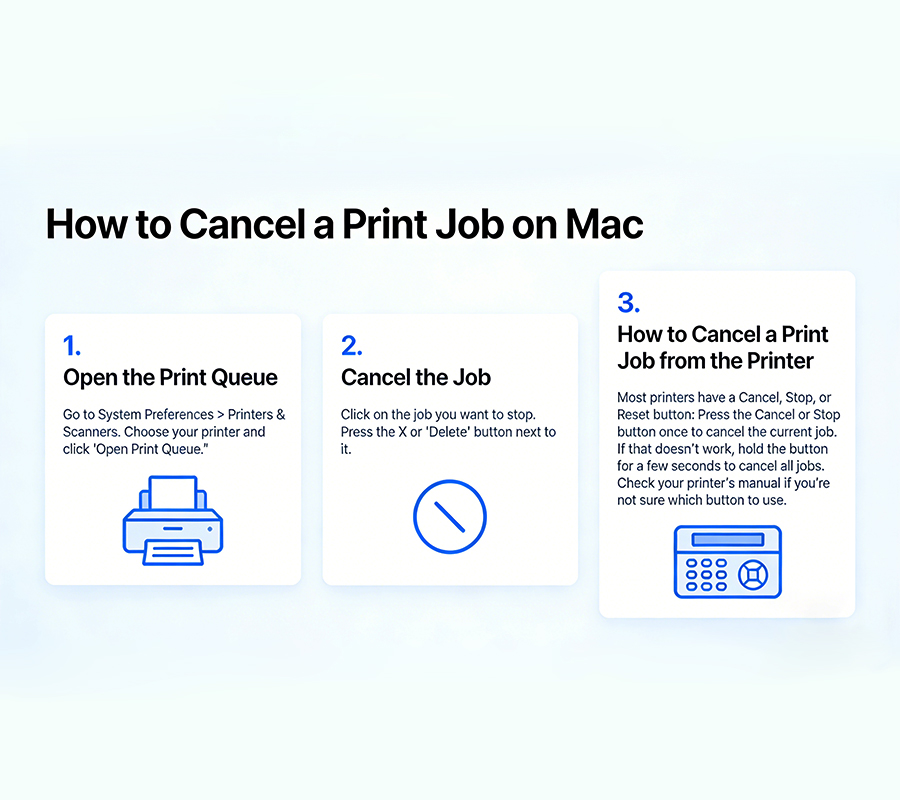
How to Cancel a Print Job on Mac
1. Open the Print Queue
- Go to System Preferences > Printers & Scanners.
- Choose your printer and click “Open Print Queue.”
2. Cancel the Job
- Click on the job you want to stop.
- Press the X or “Delete” button next to it.
How to Stop or Pause Industrial & DTF Printers (4 Pro Methods)
Stopping an industrial or DTF printer requires extra caution to prevent printhead damage or ink clogging. Unlike standard desktop printers, DTF machines often have specific pause and emergency stop procedures.Watch our step-by-step video tutorial below to learn 4 easy ways to pause or cancel a job on your DTF printer safely:
How to Cancel a Print Job from the Printer
Most printers have a Cancel, Stop, or Reset button:
- Press the Cancel or Stop button once to cancel the current job.
- If that doesn’t work, hold the button for a few seconds to cancel all jobs.
Check your printer’s manual if you’re not sure which button to use.
Tips to Avoid Printing Problems
- Always check your file in Print Preview before printing.
- Make sure the settings (color, pages, layout) are correct.
- Keep your printer’s software up to date.
- Use high-quality ink, like Winnerjet’s professional ink, to reduce problems like smudges or repeated prints.
Final Thoughts
Learning how to stop a print job can save ink, paper, and time. Whether you use Windows, Mac, or handle it on the printer itself, these quick steps will help you take control of your printing.
To make your printing even smoother, use trusted ink solutions like Winnerjet ink. Our inks are designed for consistent, professional-quality results and help avoid common printing errors.
FAQs
How do I stop a printer from printing immediately?
Press the Stop/Cancel button directly on your printer. If it doesn’t respond, quickly turn off the power switch or unplug the machine to halt the paper feed.
How to cancel a print job in Windows?
Right-click the printer icon in the bottom-right taskbar, select “Open All Active Printers,” right-click your document, and choose “Cancel.”
How to stop printing on a Mac?
Click the printer icon in your Dock to open the print queue, then click the “X” or “Delete” button next to the document name.
Why is my print job stuck on "Deleting" or "Canceling"?
This usually means the Print Spooler is frozen. To fix this, restart your computer or manually restart the “Print Spooler” service in Windows Services.
What is the fastest way to clear the print queue?
The fastest way is to right-click the specific printer in your Settings/Control Panel and select “Cancel All Documents” to wipe the entire list at once.